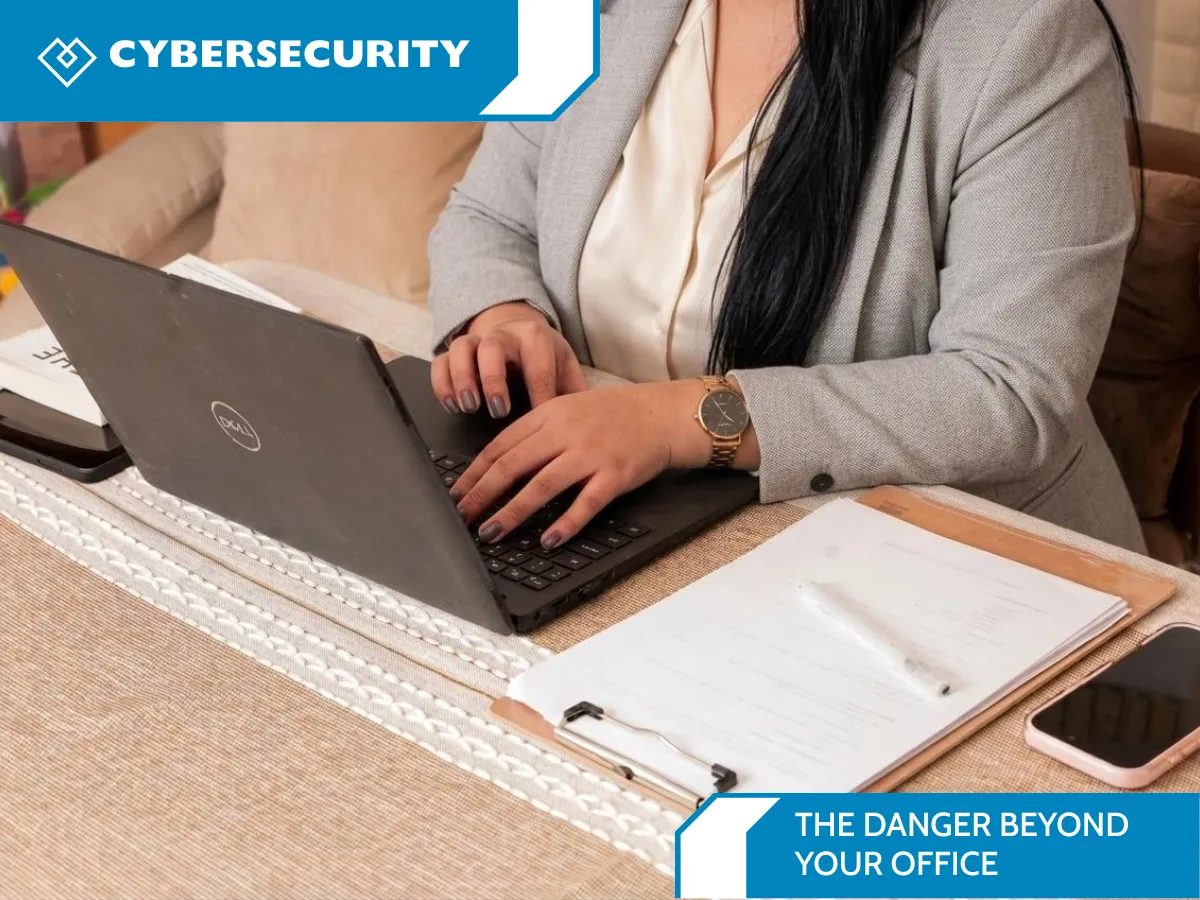
The Danger Beyond Your Office
Remote Work and Public Wi‑Fi
The office can be a kitchen table, a hotel lobby, or the corner seat at a coffee shop. Remote work gives people flexibility, but it also means company accounts and files may be accessed far beyond the office network. During October’s Cybersecurity Awareness Month, it’s a good time to ask: Is public Wi‑Fi safe for work, and what can remote workers do to protect company data?
The answer is practical, not panic-driven. Most websites now encrypt information with HTTPS, so public Wi‑Fi is generally safer than it used to be. But an unfamiliar network can still expose you to risks, especially if a device or account is poorly protected. A few simple habits—and clear company policies—can reduce that risk.
What makes public Wi‑Fi a concern?
Public Wi‑Fi in cafés, airports, hotels, libraries, and coworking spaces is shared with many people. A network name can also be copied by someone setting up a fake hotspot, sometimes called an “evil twin.” If you connect to the wrong network, you may be sending traffic through a connection controlled by someone else.
Encryption helps protect information in transit. HTTPS encrypts the connection between your browser and a website, while a company-approved virtual private network (VPN) can add an encrypted connection for supported work traffic. Neither one fixes every security problem: a VPN cannot protect a device that is already compromised, and it does not make a fake login page legitimate. Keep your software current and check the address before entering a password.
The risk also comes from everyday exposure. A laptop left unattended can be stolen. A screen can be read over your shoulder. A confidential call may be overheard. And if a personal and work account share a password, one compromised login can put more than one account at risk.
Before you connect: a quick remote-work checklist
1. Confirm the network name. Ask staff for the exact Wi‑Fi name instead of choosing one that merely looks right. Avoid networks with suspicious names or unexpected sign-in pages. A password on a public network is useful, but it does not prove that the network is trustworthy or that all traffic is protected.
2. Prefer a mobile hotspot for sensitive work. When possible, use your phone’s personal hotspot or another trusted connection for payroll, customer records, financial systems, administrator accounts, or confidential documents. A hotspot is not magic protection, but it avoids joining a shared public wireless network. Follow your organization’s mobile-data and VPN rules.
3. Use the company-approved VPN and remote access tools. If your employer provides a VPN, secure remote desktop, or other managed access service, use it as instructed—especially for internal systems. Keep the VPN app updated and report connection or sign-in prompts that seem unusual. Do not install an unknown “free VPN” on a work device without approval.
4. Turn on multifactor authentication (MFA). MFA asks for another proof of identity, such as an authenticator-app approval or security key. It can make a stolen password less useful to an attacker. Use unique passwords for work accounts and a password manager approved by your organization.
5. Update and lock your devices. Install operating-system, browser, and security updates promptly. Use disk encryption and a strong sign-in method where available. Set a short automatic screen lock, and lock the screen whenever you step away—even for a moment.
6. Limit what’s visible and accessible. Turn off file sharing and automatic connection to open Wi‑Fi networks when they are not needed. Avoid sensitive work on a public computer. Keep devices with you, use a privacy screen if appropriate, and take confidential calls somewhere private. Log out of work sessions when finished.

Is HTTPS enough? Is a VPN necessary?
HTTPS is important: look for https:// and the lock indicator before sharing information in a browser. Modern encryption means that simply being on public Wi‑Fi does not automatically mean someone can read your passwords or messages. Still, HTTPS protects the connection to that particular website; it does not verify that a website is genuine, secure your laptop, or enforce your employer’s access controls.
A VPN is most valuable when it is provided and managed by your employer to protect access to company resources. Its coverage depends on how the organization configured it and which apps use it. Follow your IT team’s instructions rather than assuming every VPN offers the same protection. When the work is sensitive and you are unsure about the network, pause and ask IT or switch to a trusted connection.
What businesses should put in place
Remote-work security is a shared responsibility. Employers should give staff a short, usable policy for public Wi‑Fi, mobile hotspots, VPN use, MFA, device updates, and reporting a lost device or suspicious login. Managed devices, endpoint protection, encrypted storage, least-privilege access, and tested backup and recovery plans add layers of protection.
A policy only works if employees can follow it. Make sure people know which devices and apps are approved, where to get help, and what to do if a connection behaves strangely. October is a useful moment to review those basics, run a short awareness session, and check whether remote access settings still match how your team works.
Make remote work safer this October
You do not need to stop working from cafés or hotels. You do need to treat each unfamiliar connection as a decision: verify the network, use company-approved protections, keep devices updated, and save sensitive work for a trusted connection when needed.
If your team is unsure whether its VPN, MFA, device policies, or remote access setup is doing enough, our team can help review the essentials and map out practical next steps. Book a cybersecurity consultation with us this October: https://heartfeltit.com/meeting to talk through your remote-work setup and the risks that matter to your business.
This article offers general security guidance. Follow your organization’s policies and ask your IT provider about your specific setup.