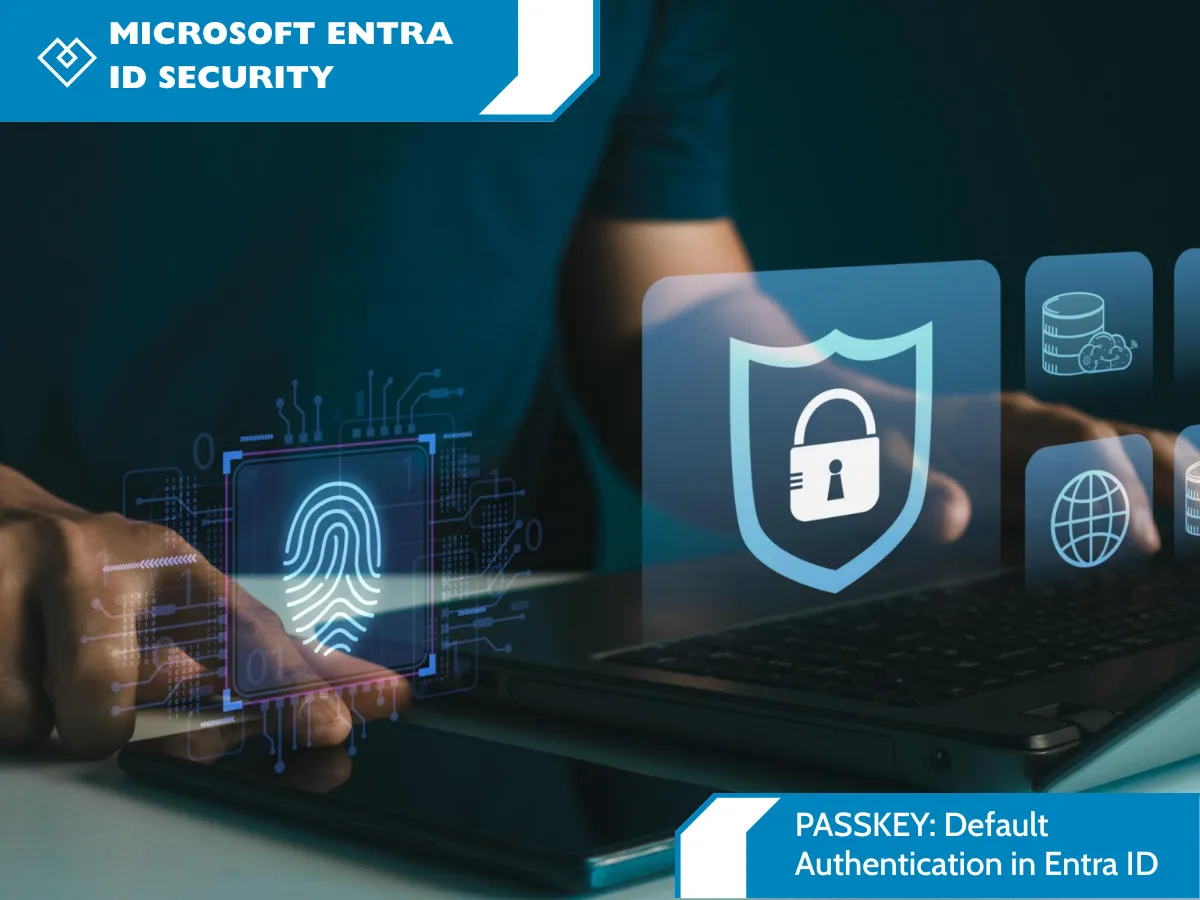
Microsoft Authentication Changes: Passkeys & SMS Retirement
Microsoft Is Changing How You Sign In: What Microsoft 365 Users Need to Know
If you use Microsoft 365 for your email, files, and other business applications, Microsoft is making an important change to the way you confirm your identity when signing in.
Don't worry—this isn't a complicated change for you to manage on your own. The important thing to know is that Microsoft is moving away from text messages and phone calls as a security method and encouraging users to switch to safer options.
At Heartfelt IT, we want our customers to understand what is happening, why Microsoft is making this change, and what they can expect.
First, What Is 2-Factor Authentication?
You may already be using something called 2-factor authentication (2FA) or multifactor authentication (MFA) without realizing it.
In simple terms, it means Microsoft asks for two ways to prove that you are really you when you sign in.
For example, you might enter your password first and then receive a text message with a security code.
The second step helps protect your account if someone somehow gets your password.
Microsoft currently supports several ways to complete this second step.
The Four Common Ways to Verify Your Identity
Here are four authentication methods you may encounter:
1. SMS Security Code
Microsoft sends a security code to your mobile phone by text message.
You enter that code when Microsoft asks you to verify your identity.
Example:
You sign in → Microsoft texts you a 6-digit code → you enter the code → you're signed in.
This is one of the most familiar ways of protecting an account.
2. Voice Call
Instead of receiving a text message, you receive an automated phone call.
The call tells you a security code, which you enter when Microsoft asks you to verify your identity.
Example:
You sign in → Microsoft calls your phone → the automated voice tells you a code → you enter the code → you're signed in.
3. 6-Digit Code From an Authentication App
You can also use an authentication application that generates a temporary security code.
For example, this could be:
Microsoft Authenticator
Google Authenticator
Another supported authenticator or password-management application
The application displays a changing 6-digit code that you enter when Microsoft asks you to verify your identity.
Unlike an SMS message, you don't have to wait for a text to arrive.
4. Passkey
A passkey is a newer and more secure way to prove that you are really you.
It is a secure digital credential stored on a supported device. Depending on your device, you may verify yourself using:
Your fingerprint
Facial recognition
Your device PIN
Another approved device security method
For many people, it can feel as simple as unlocking their phone.
You don't have to remember another complicated password.
Passkeys are also designed to provide stronger protection against phishing and other attempts to steal your login information.

So, What's Changing?
Here's the part that matters most.
If you're currently using SMS or voice calls as your 2-factor authentication method for Microsoft, Microsoft wants you to move to one of the newer methods.
That means moving from:
SMS → Authentication app or Passkey
or
Voice call → Authentication app or Passkey
Microsoft is making this change because text messages and voice calls are more vulnerable to certain types of scams and attacks than newer authentication methods.
The goal is to make your Microsoft account harder for criminals to break into.
You Have Time to Make the Change
Microsoft isn't expecting everyone to change overnight.
Starting September 1, 2026, Microsoft will begin prompting affected users to register a passkey.
The transition period gives users time to move away from SMS or voice authentication.
So, if you currently receive a text message or phone call when you sign into Microsoft, don't be surprised if Microsoft starts asking you to set up a different way to verify yourself.
This doesn't mean that your account has been hacked.
It means Microsoft is updating the way it protects your account.
What Happens If You Keep Using SMS or Voice?
Microsoft is eventually retiring its own SMS and voice authentication service.
The important date is:
February 1, 2027
Microsoft-provided SMS and voice authentication will be retired.
After that, users whose only available MFA method is SMS or voice will be required to register a passkey before they can continue signing in.
That's why Microsoft is giving users several months to move to another authentication method.
For most users, the easiest options will be either:
Option 1: A 6-digit code from an authenticator application
or
Option 2: A passkey
Both provide alternatives to receiving a security code through a text message or phone call.
Why Is Microsoft Making This Change?
You may be wondering:
"I've been getting a text message for years. Why isn't that good enough anymore?"
The answer is that online scams have become much more sophisticated.
Criminals can create convincing fake Microsoft login pages and trick people into entering their passwords.
They can also try to convince someone to give them the security code they just received.
There are other attacks involving phone numbers, including SIM swapping, where criminals attempt to take control of someone's mobile number.
Microsoft therefore wants users to move toward authentication methods that are more difficult for criminals to trick or steal.
Passkeys are particularly useful because they are designed to resist phishing attacks.
What Does This Mean for You?
For most Microsoft 365 users, the actual change should be fairly straightforward.
If you currently receive a text message or phone call when signing in, you should expect Microsoft to eventually ask you to use another method.
You may see a message asking you to register a passkey.
Or you may choose to use an authenticator application that provides a temporary 6-digit code.
You do not need to become a cybersecurity expert to make this change.
And you don't need to figure out complicated Microsoft settings yourself.
If Microsoft asks you to change your authentication method and you're not sure what to do, Heartfelt IT is here to help.
What If I Use Google?
This particular announcement is about Microsoft authentication.
If you are a Google Workspace or Google account user and you do not use Microsoft 365 authentication, this specific Microsoft change does not affect you.
Google has its own authentication and security systems, which are separate from Microsoft's.
If your business uses both Microsoft and Google services, however, it's worth knowing which account you're using when you see an authentication prompt.
What Should You Do If Microsoft Asks You to Change?
You don't need to panic if you see a new message from Microsoft asking you to set up a different authentication method.
First, remember:
This is a security improvement—not a sign that something is wrong with your account.
Microsoft is simply changing how users prove their identity.
If you understand the options, you can choose the method that works best for you.
If you aren't sure which option to choose, or if you run into trouble while changing your authentication method, contact Heartfelt IT Support before making changes you're uncomfortable with.
We can help you understand what Microsoft is asking you to do and assist you through the process.
Your Security Doesn't Have to Be Complicated
We understand that technology can sometimes feel unnecessarily complicated.
You shouldn't need to understand how Microsoft's authentication system works behind the scenes to keep your business secure.
The important thing to remember is:
If you currently use SMS or voice calls to verify your Microsoft account, Microsoft is moving you toward a safer authentication method.
You will have time to make the change, and you may choose an authenticator application with a 6-digit code or a passkey.
And if you're not sure what Microsoft is asking you to do, that's what we're here for.
Need Help?
If you're a Heartfelt IT customer and Microsoft asks you to change your authentication method, don't hesitate to contact our Support Center.
We can help you understand the change and assist you if you have trouble setting up your new authentication method.
Your technology should help you feel safe—not leave you wondering what button to press.
Key Dates at a Glance
September 1, 2026
Microsoft begins prompting affected users to register a passkey.
February 1, 2027
Microsoft-provided SMS and voice authentication will be retired.
Who is affected?
Microsoft users who currently rely on SMS or voice authentication.
Who is not affected by this specific change?
Google users who do not use Microsoft authentication.
What can you use instead?
A 6-digit code from an authenticator application or a passkey.
Need help?
Contact Heartfelt IT Support